
ESC/POS-compatible · Thermal printer class
LAN · Requires qualification
Assignment and setup
Assign the printer by register, area, or station. Reserve a branch IP address, import or enter the ESC/POS profile, and verify a test print.
Compatibility record
PosiDine branch hardware guide · LAN printer configuration
Reviewed Nov 24, 2026
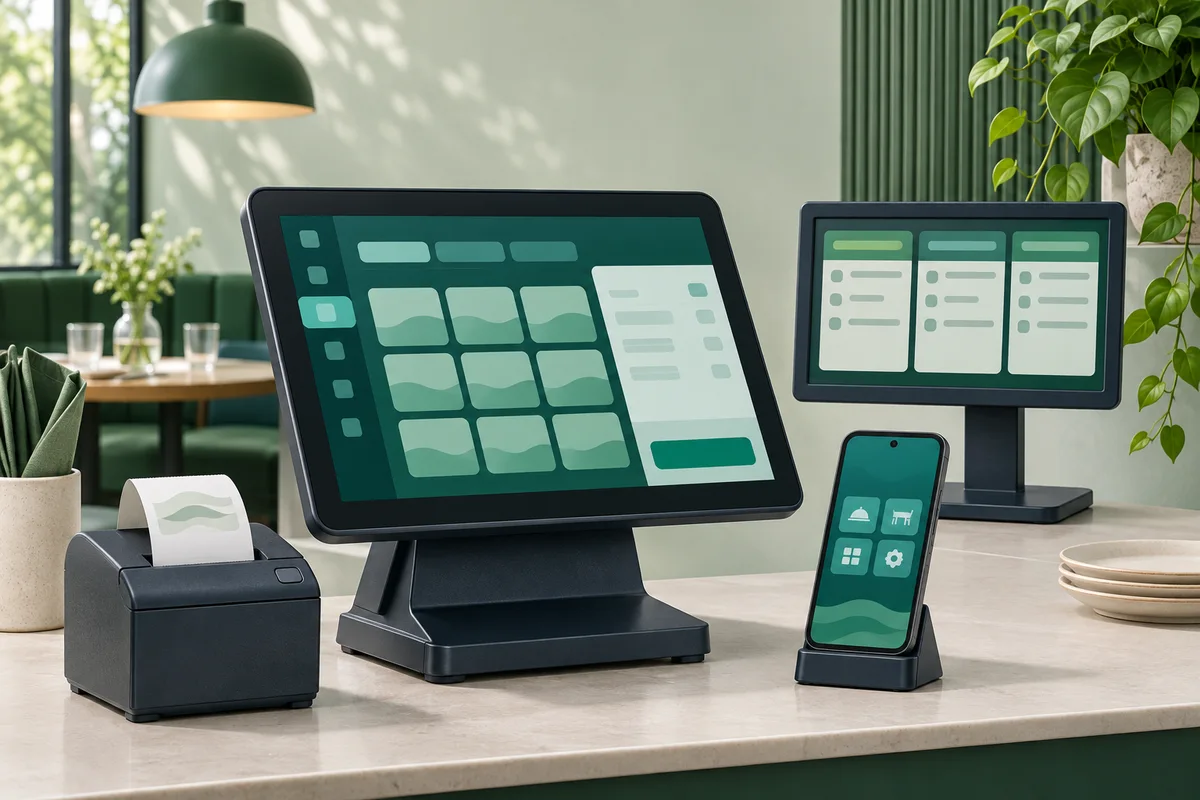
Connect a network thermal printer
- Connect to the branch LAN
Reserve a private IPv4 address on the branch network and confirm the printer uses the expected ESC/POS transport.
- Assign a destination
Add the profile in Hardware Inventory and assign the printer to a terminal, service area, or kitchen station.
- Verify paper output
Send a test job, inspect the output, and confirm the endpoint in the print queue.
What to verify before service
- Check the exact model, supported ESC/POS commands, paper width, cutter, and TCP port. The LAN adapter uses TCP 9100, and the hardware guide references the Epson TM-T88VII.
- Test the printer from the gateway’s network and check access to the correct device address.
- Record the printer assignment and rehearse paper-out, network-loss, and reprint scenarios.
Keep the connection settings and pairing codes within the restaurant’s management setup. Check the assigned branch and device before rehearsing the workflow.