
PosiDine · Enrolled browser on supported screen
Browser · Verified configuration
Assignment and setup
Enrol a kitchen display for the station or a separate pickup screen. Connect the display to the branch gateway. Check mounting, Wi-Fi and screen visibility at the venue.
Compatibility record
Maple & Main showcase browser verification
Reviewed Nov 24, 2026
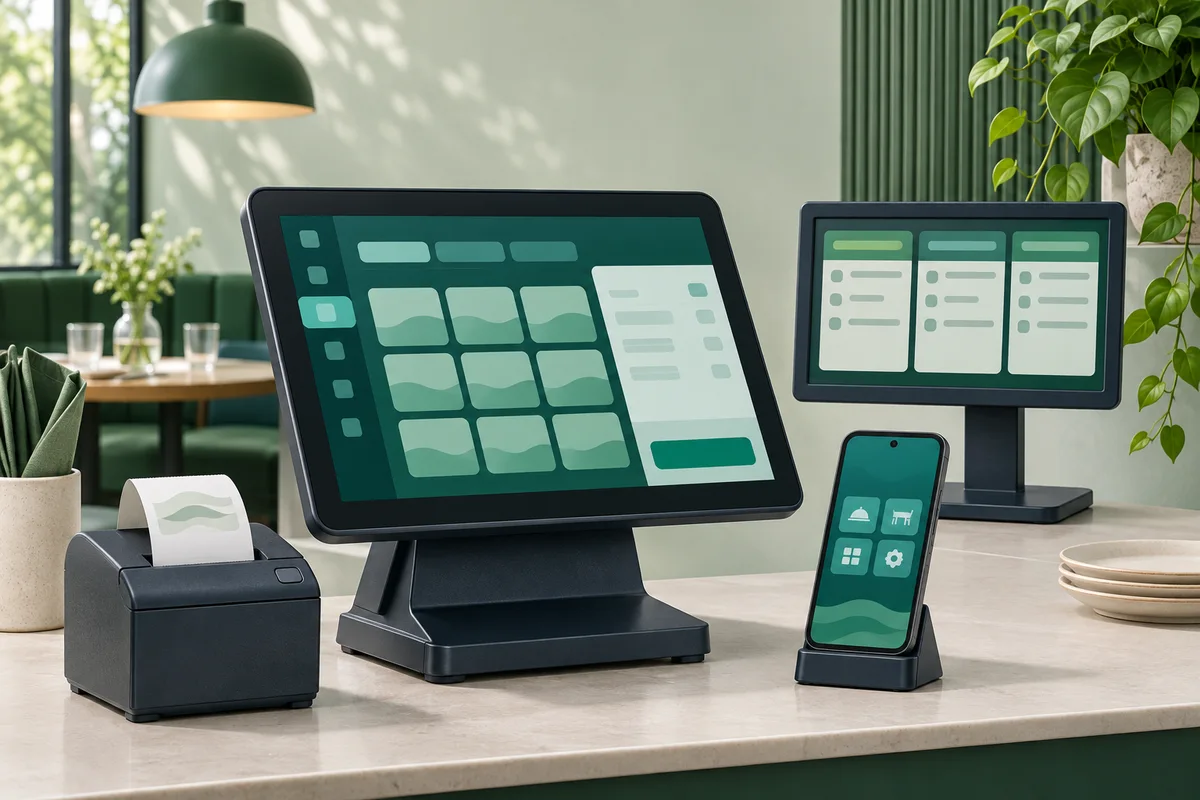
Enrol a browser as a kitchen or pickup display
- Choose the display type
Issue a branch enrolment code for either an assigned kitchen station or the public pickup screen.
- Open the branch screen
Use the enrolled browser on the branch network and verify the correct station or pickup queue.
- Walk a test order
Send one station ticket and confirm readiness appears on the intended display.
What to verify before service
- Check screen visibility, power, browser kiosk settings, and Wi-Fi or wired connectivity.
- Verify the pickup screen shows only public order numbers and statuses.
- Confirm the station display and printer assignment separately if the kitchen uses both.
Keep the connection settings and pairing codes within the restaurant’s management setup. Check the assigned branch and device before rehearsing the workflow.